Sharing and exporting
Send a link that needs no account, print a solfa or jianpu PDF, send an MP3 they can just play, embed a score in a site, or export MIDI for a DAW.
Verified against 1.0.0
Share a link
Share puts your score on the web at a short link. Anyone who opens it gets a read-only viewer with playback — no account, no install, on any phone. That’s the point: your choir shouldn’t need to sign up to read the music.
Shared scores are live. Keep editing and the link updates for everyone watching it, which is genuinely useful when the link is up on a projector and you’re fixing a wrong note from the piano.
Keeping a score someone shared with you
A shared page has a Save a copy button in its top right. It puts the score in your library as a new score you can edit, transpose, re-key and print. The original is untouched and stays the author’s — a share link is read-only, and this is the honest version of “let me work on this”.
If you’re not signed in when you press it, you’ll be asked to sign in first and then land straight in your copy — you don’t have to find the link again.
The Share dialog also offers an embed snippet — an <iframe> you can paste
into a church website or blog post, so the score plays inline there. There’s a
white-label toggle that drops the DomiSol credit from the embed.
Export a sheet
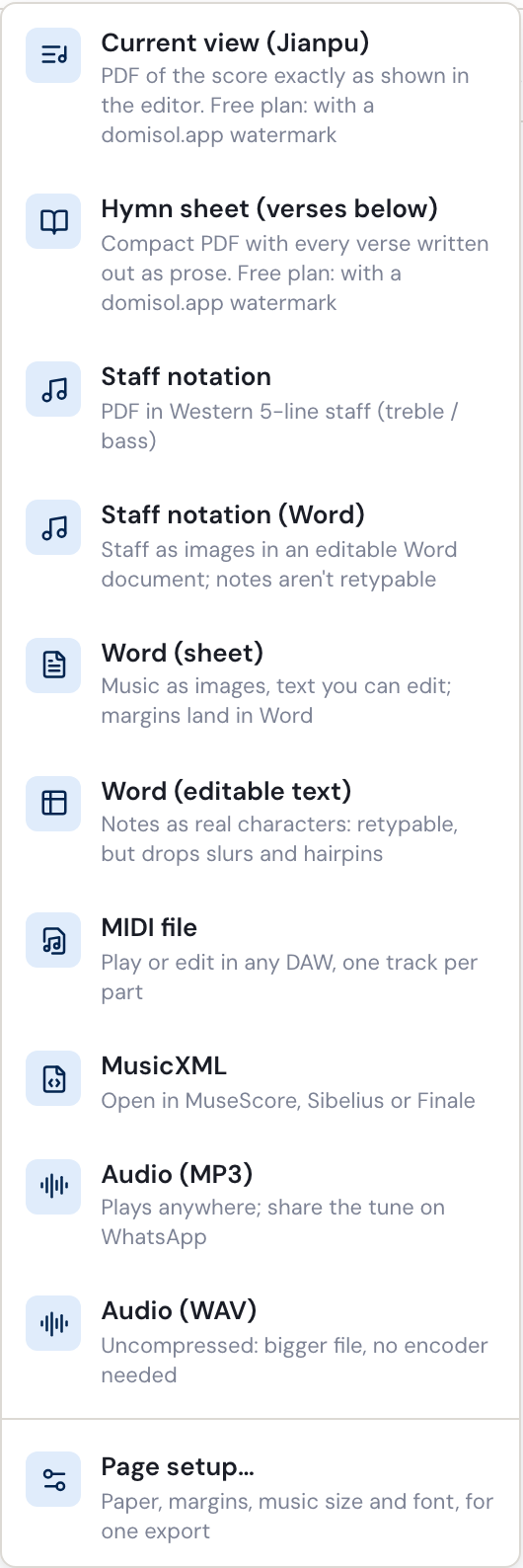
Export offers ten formats, and Rehearsal tracks on a score in parts.
| Format | What you get |
|---|---|
| Current view | A PDF exactly as the editor shows it — solfa or jianpu, whichever is displayed |
| Hymn sheet (verses below) | A compact sheet with the verses written out as text below the music |
| Staff notation | Your score on a Western five-line staff, as a PDF |
| Staff notation (Word) | The same five-line staff, in a .docx with editable text around it |
| Word (sheet) | A .docx — music as images, all the text editable, your page setup carried into Word |
| Word (editable text) | A .docx where the notes are real characters in a table you can retype |
| MIDI file | A .mid for any DAW, one track per part |
| MusicXML | A .musicxml to open in MuseScore, Sibelius or Finale |
| Audio (MP3) | A compressed audio file of the score — the one to send someone |
| Audio (WAV) | The same audio, uncompressed: a much bigger file, no encoder involved |
| Rehearsal tracks | A zip with one MP3 per voice part, that part louder than the others |
Current view is the one most people want: it’s the notation your singers read, laid out for paper. Switch the display to jianpu before exporting if that’s what you’re handing out — the export follows what’s on screen, which is why the menu item names the current notation.
Hymn sheet (verses below) is for the case where the music is short and the words are long: one system of notation, then verses 2–5 as text underneath, the way a hymnbook sets it. (It is one song. A whole book of them is a hymnbook.)
Staff notation exists so you can hand a piece to someone who reads staff — an organist, a guest instrumentalist. It’s an export only. DomiSol doesn’t edit staff notation and isn’t trying to.
Staff notation (Word) is the same engraving, laid into a .docx instead of
a finished PDF — one image per line of music, with the title, composer,
key/meter line, verses and any notes you added as real Word text. Take it when
the staff has to go inside something else: a service order, a school
worksheet, a submission form, a publisher’s template. The two files break their
lines in exactly the same places, so the Word one is not a different edition of
the piece — but as with the other Word exports, the notes are pictures and
cannot be retyped there.
Word
There are three, because “I want to edit it further” turns out to mean several different things. Two of them put the solfa or jianpu into Word; the third (above) puts a staff there.
Word (sheet) is the faithful one. Each system of music comes through as a high-resolution image, and the title, composer, verses and any notes you added are real Word paragraphs. Your paper size and margins arrive as Word’s own page setup, so you can change them there, add a header, or paste the hymn into a service sheet. The music itself is a picture — you cannot re-note it in Word.
Word (editable text) goes the other way: every note is a real character in a table, duration beams are the cell borders under them, and the lyrics sit in a row beneath. You can retype it, change the font, or fix a wrong note by typing over it. The cost is real: slurs, hairpins, ties, tuplet brackets and glissandi have no Word equivalent and are left out, so it will not look like your sheet.
If you are not sure which you want, take the sheet. It is the one that matches what you see.
MIDI carries the articulations and dynamics through, with one track per voice so an SATB score opens cleanly separated in a DAW.
Audio is for the singer who can’t read the notation yet. DomiSol renders the score to sound and downloads it — faster than real time, entirely in your browser, so nothing is uploaded and there is nothing to wait for on a server. MP3 is the one to send: it’s small and it plays anywhere, including WhatsApp. WAV is the same audio uncompressed, for the rare case you want it lossless.
The render uses each part’s chosen instrument, so a score set to the recorded grand piano exports as that. It ignores mute, solo and practice speed — the file is the whole piece as written — and the level is lifted so it’s audible on a phone speaker whichever voices you used. Audio export is capped at six minutes; past that, export MIDI instead.
Audio export appears on your own scores. It isn’t offered on a shared score page, because rendering minutes of audio is the recipient’s battery, not a choice they made by opening a link.
Staff notation (PDF or Word), MIDI, MusicXML, both solfa/jianpu Word exports, WAV audio and rehearsal tracks need a paid plan: the 7-day Pass, Pro or Lifetime (or Personal, for anyone who bought it). On the free plan each of them shows a Pro tag in the menu. The solfa/jianpu PDF and MP3 audio are always free. The MP3 is how a tune reaches the person at the other end, and that should not depend on the sender’s plan.
Rehearsal tracks
On a score with two or more voice parts, Export → Rehearsal tracks makes one MP3 for each part: that part at full level and every other part 15 dB quieter, so a singer hears their own line against the harmony. A four-part hymn gives four files, and they arrive together in one zip named after the score. It needs a paid plan: the 7-day Pass, Pro or Lifetime (or Personal, for anyone who bought it).
The files sort in score order and say whose they are:
Amazing_Grace-01-Soprano.mp3, Amazing_Grace-02-Alto.mp3 and so on. Unzip
it and send each section its own.
Each track is the same audio as Audio (MP3): the same instruments, the same length, the same six-minute limit. Mute and solo change nothing here either. A part you muted still gets its track, and is still heard, quietly, in the others. A part with no notes gets no track, and the entry only appears once two parts have notes.
The score is rendered once per part, so a set takes about as many times longer than a single MP3 as the score has parts. A card shows which track it is on, and the ✕ on it cancels: nothing is downloaded.
A low part can be hard to pick out on a phone’s own speaker, which does not play notes that low. Earphones help. So does giving that part the Organ or Strings sound in Instruments before you export, because a track uses whatever instrument its part is set to.
Send the file from a phone
On a phone, when a PDF or an MP3 is finished, a card says File ready and offers Send and Download. Send opens the phone’s own share sheet, so the file goes straight into a WhatsApp chat without a trip through Downloads. Download saves it as before, and so does closing the card.
Rehearsal tracks are sent as the MP3s themselves, one per part, and downloaded as one zip. If the share sheet is cancelled the card stays, so you can send again or download.
The card appears only where the phone’s browser can share files. On a computer, and for Word, MIDI, MusicXML and WAV, the file downloads.
Page setup
Page setup… sets the paper your score is engraved onto: size (A4, Letter, Legal, A5, B5 or your own measurements), portrait or landscape, margins, how big the music is drawn, how big the lyrics are printed, how many bars go on a line, and the text face.
You can reach it two ways, and they do different things on purpose:
- Score tab → Page setup… saves it on the score. Every export follows it from then on, it survives a reload, and it is undoable like any other edit. This is the one to use if your choir always prints on A5.
- Export → Page setup… changes it for one export only. The score keeps whatever it had. There is a “Save as this score’s default” button in that dialog if you decide you want to keep it after all.
Changing the paper does not shrink the music. A narrower page fits fewer bars on a line and gets more lines; the notes stay the size they were. If you want them smaller or larger, that is the Music size slider, which is separate for exactly this reason.
The font sets the printed sheet’s title, its key and tempo line, the notes themselves and the lyrics.
Lyrics size prints the words larger or smaller and leaves the notes as they are. Under the slider is the size the words come out at on paper, in points, the unit a word processor uses: 8.6 pt unless you change anything. The words are sized beside the music, so Music size still makes the whole sheet larger or smaller, words included. If you shrink the music to fit a hymn on one page, raise Lyrics size to keep the words easy to read. Larger words need more room, so a line can hold fewer bars.
Lyrics size reaches the sheet PDF, the hymn sheet (its written-out verses too), hymnbooks and Word (sheet). Staff notation, Word (editable text) and a PDF made in the phone app print the words at their usual size.
Bars per line is a property of the score rather than of one export — every renderer honours it, including the editor canvas and a shared link — so it saves even when you set it from the export dialog. The dialog says so.
A listen link on the printed sheet
Print a link and QR code to listen, at the bottom of Page setup, adds one line to the foot of the first page of the sheet PDF and the hymn sheet: “Listen and follow along”, the score’s share link, and a QR code that opens it. A singer holding the paper scans the code and hears the score, with playback and the notation on screen. Somebody without a camera can type the link.
The link is the score’s share link, so the score has to be public. If it already is, ticking the box is all there is to do. If it is not, DomiSol tells you that anyone with the link will be able to open and play the score, and publishes it only when you press Make public and print the code. Cancel leaves it private. Exporting never makes a score public.
If you make the score private again later, the code on sheets you have already printed stops working, and new sheets print without the line.
Like the rest of Page setup, it is saved on the score from the Score tab, or set for one export from the Export menu. The code is at least 20 mm across and prints black on white on every plan. Staff notation, the Word exports and hymnbooks do not carry it, and neither does a PDF made in the phone app.
Getting music in
The reverse trip lives under Create:
- Import MusicXML / MIDI — from MuseScore, Finale, Sibelius or a DAW. Staff notation is converted to solfa/jianpu on the way in.
- Photo → score (in the ⋯ menu) — a photo or PDF of a printed, handwritten, solfa, jianpu or hymnbook page, recognised into an editable score.
- Paste notation — type or paste jianpu/solfa text.
- Sing to score — hum along to a metronome and get notation back.
Where to go next
- Playing your score back — before you send it.
- Your first score — the basics, if you jumped in here.
Related pages
- Solfa & Jianpu PDF Export (Free, Print-Ready)Export your tonic solfa or jianpu score as a print-ready A4 PDF, free, online, one click. Perfect for Sunday-morning choir handouts.
- Jianpu to MIDI Export (Online)Convert jianpu (1 2 3 4 5 6 7) to MIDI for any DAW, Logic, Ableton, Cubase, GarageBand. Online, one click, on the paid plans. Each voice as a separate MIDI track.
- Solfa to Staff Notation Converter (Online)Convert tonic solfa to staff notation PDF, online, in your browser. Write d r m f s l t free, export as standard sheet music with one click on a paid plan.